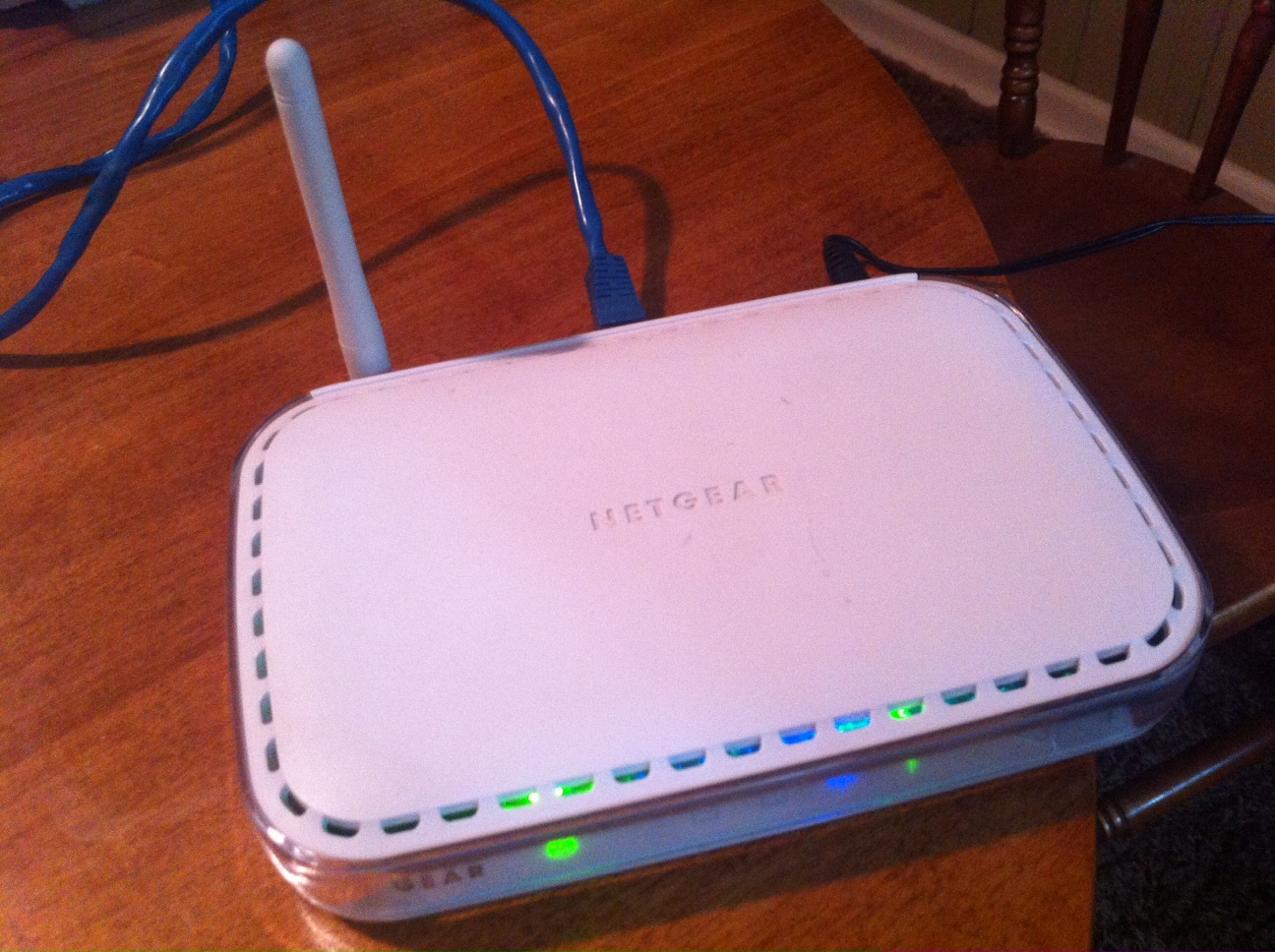
Someone gave my father-in-law an old Netgear wireless print server. It includes two USB ports (for printers) and four ethernet ports. The device can connect to an existing wireless network, so it’s essentially a wireless bridge device. He wanted to use it to extend Internet access to an out-building on his property.

I configured the device to work with his network. In the process, I had to find the default settings so I could connect to the device and configure it. Netgear no longer offers support for this device and I wasn’t able to download the manual from Netgear’s Website. I had to use third-party sources. I figured I’d go ahead and post the default settings needed to connect to this device.

Netgear 54 Mbps Wireless Print Server w/4-port Switch (WGPS606)

Device IP: 192.168.0.102
Username: admin
Password: password

4 responses to “Default Settings for a Netgear 54 Mbps Wireless Print Server w/4-port Switch (WGPS606)”

  1. Jeff Avatar
    Jeff

    FYI — You can still get Firmware, Manuals and etc.

    http://support.netgear.com/product/WGPS606

    1. Michael Avatar

      Thanks for the follow-up Jeff. When I worked on the device I couldn’t download the manuals from the site. It must have been a temporary problem so thanks for letting me know.

  2. jklops Avatar
    jklops

    that ip don’t work on my laptop or desktop tried it over and over but doesn’t work. anyone else know what the problem could be?

  3. Brad Avatar
    Brad

    Thi unit stopped working after I changed the WiFi setup to WPA2. It may support WPA without a FW upgrade, but now I cannot wake it up even through a clear WiFi, unencrypted.

    Is there a way to get to it through the Ethernet port?

    Anyone?

Leave a reply to Michael Cancel reply

This site uses Akismet to reduce spam. Learn how your comment data is processed.

I’m Mike

Welcome to my blog, which I have maintained for several years, off and on, to share things that I’ve learned from numerous projects and various problem solving escapades. This is my way of giving something back to the online communities that have helped me learn more about a wide variety of topics.